
Install on Windows (Self-hosted Installer)
Step-by-step guide to install Shift-Left API on Windows—Installer, Engine, Studio, MongoDB setup, and verification.
View as MarkdownWho this is for
Use this guide if your organization is deploying Shift-Left API (self-hosted) in your own environment and you have been given a Windows installer (.exe) from the Downloads page or your admin.
If you're using a cloud workflow instead, start with Getting started.
Understanding the components
The Shift-Left API Platform on Windows consists of three main pieces. Understanding them will help you choose what to install and where.
1. Shift-Left API – Platform Installer (the Installer)
The Installer is the application you run first. It:
- Installs and updates Engine and Studio on your machine
- Lets you configure the database (MongoDB) and Engine port
- Manages components: install, update, or uninstall Engine and Studio
Setup name: Shift-Left API - Platform Installer Setup X.X.X.X.exe (for example, Shift-Left API - Platform Installer Setup 2.0.11.134.exe).
Installed location:
C:\Program Files\Shift Left API Platform\Unified-Installer
After the initial setup wizard finishes, you open the Shift-Left API - Platform Installer to select and install the Engine and/or Studio.
2. Shift-Left Engine
The Engine is the API server and backend service. It:
- Runs as a Windows service (service name: Shift-Left Engine)
- Stores data in MongoDB (connection URI and database name are set during installation)
- Listens on a configurable port (default: 5001)
- Is required for running tests, managing projects, and API automation
Installed location:
C:\Program Files\Shift Left API Platform\Engine
You need a MongoDB instance (4.4 or later) available before or during Engine configuration. The Installer will validate the connection.
3. Shift-Left Studio
Studio is the desktop application (GUI) you use to:
- Create and manage projects, workflows, and test runs
- Connect OpenAPI specs and configure environments
- View results and reports
Installed location:
C:\Program Files\Shift Left API Platform\Studio
You can install Engine and Studio on the same machine (typical for a single desktop or dev server) or install only the Engine on a server and use Studio on another machine that points to that Engine.
The installation process (overview)
- Prerequisite: Install MongoDB (or have it available) so the Engine can connect. The Installer can guide you if MongoDB is not installed.
- Run the Installer setup (.exe) to install the Platform Installer app (Unified-Installer).
- Open the Platform Installer and choose which components to install (Engine and/or Studio).
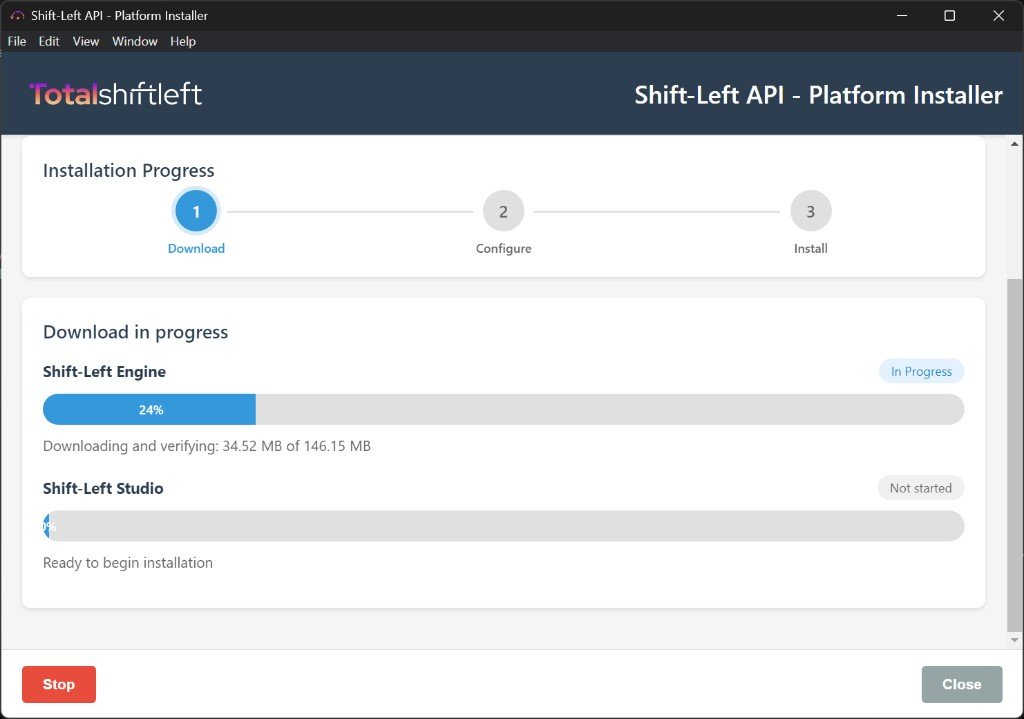
- Download – The Installer downloads the selected components.
- Configure – Set MongoDB connection (URI + database name) and optionally the Engine port.
- Install – The Installer installs Engine and/or Studio and starts the Engine service.
- Launch Studio from the desktop shortcut and complete registration.
The following sections walk you through each step with screenshots.
Prerequisites
MongoDB (required for Engine)
The Engine needs a MongoDB instance (version 4.4 or later). You have two options:
-
Install MongoDB before running the Installer (recommended)
Download MongoDB Enterprise Server (or Community Edition) from the official MongoDB site and install it on the same machine (or a reachable server):- Download page: MongoDB Enterprise Server — under MongoDB Enterprise Advanced, select MongoDB Enterprise Server, choose Windows x64, and download the server package.
- Installation guide: Install MongoDB — follow the Windows instructions for your edition.
-
Install MongoDB later
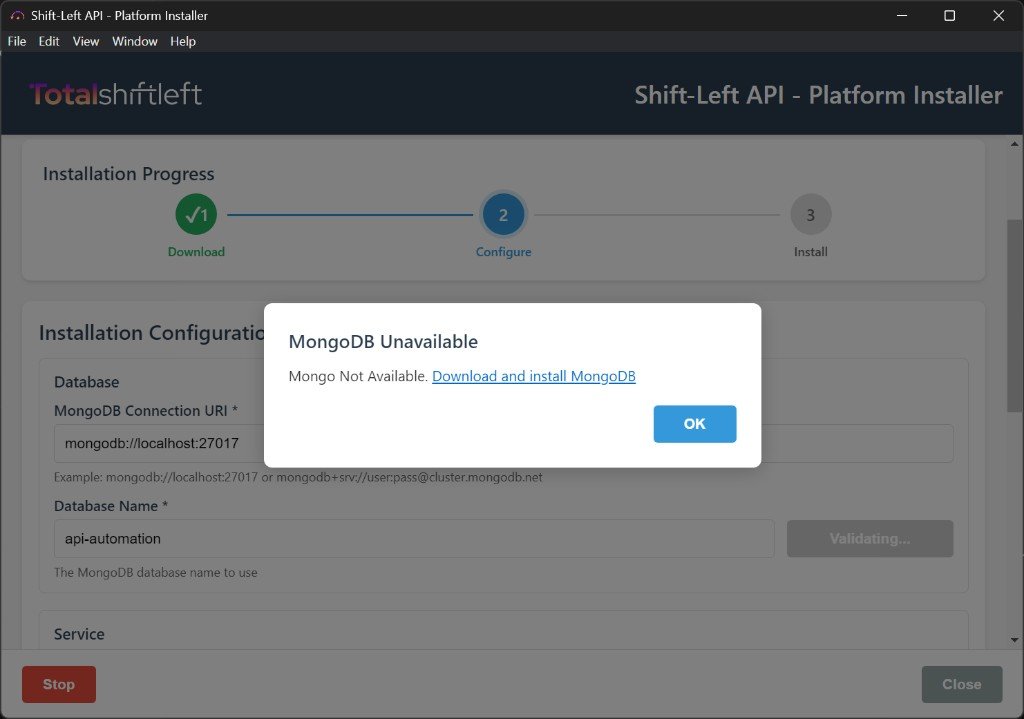
If you haven’t installed MongoDB yet, you can still run the Installer. When you reach the Configure step and click Validate Connection, the Installer will show a message that MongoDB is not available and provide a link to download and install it. After installing and starting MongoDB, return to the Installer and validate again.
You will need:
- MongoDB Connection URI (e.g.
mongodb://localhost:27017ormongodb+srv://user:pass@cluster.mongodb.net) - Database name (default used by the Installer:
api-automation)
System requirements
- OS: Windows 10 or 11
- Permissions: Administrator (you’ll see a UAC prompt when running the installer)
- Disk space: At least 2 GB free
- Network: Recommended for downloading components and updates
- Ports: Engine default port 5001 (configurable); ensure it’s not in use if you need it
Step 1 — Download the installer
- Download the installer
.exefrom the Downloads page or from the link provided by your admin. The file name is typically: Shift-Left API - Platform Installer Setup X.X.X.X.exe (e.g.Shift-Left API - Platform Installer Setup 2.0.11.134.exe).
Step 2 — Run the installer and complete the setup wizard
2.1 Run the installer
Double-click the downloaded .exe to start the setup.
2.2 Windows SmartScreen (expected)
When you run the installer, Windows may show a protection screen that says something like: "Windows protected your PC – Microsoft Defender SmartScreen prevented an unrecognized app from starting."
This is expected and nothing to worry about. We have submitted the Microsoft publisher signing certificate for this application; once it is fully trusted by SmartScreen, this prompt may no longer appear. Until then, you can safely proceed if you trust the source of the installer.
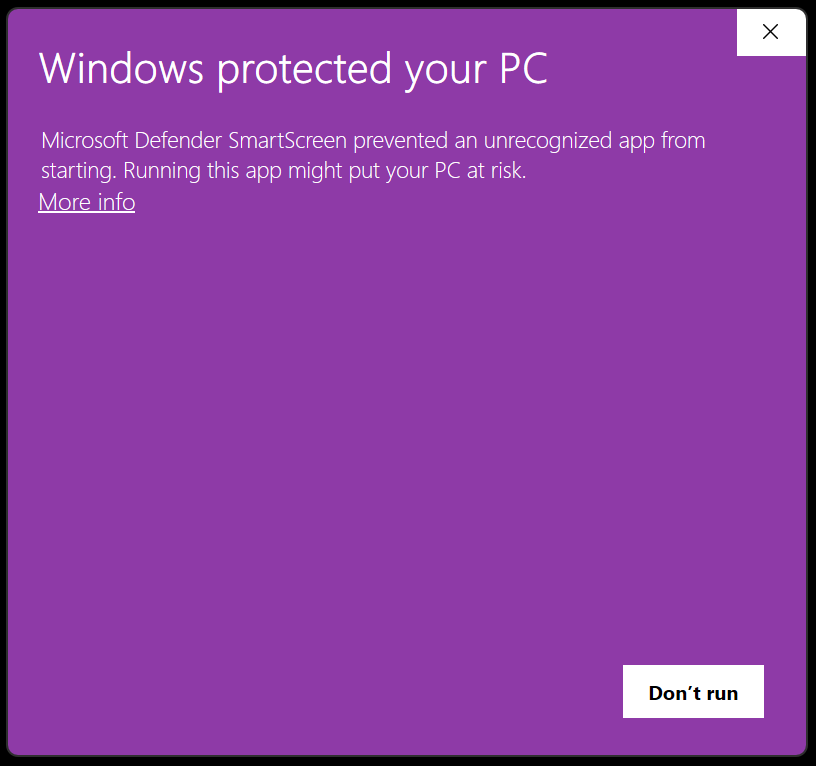
- Click More info.
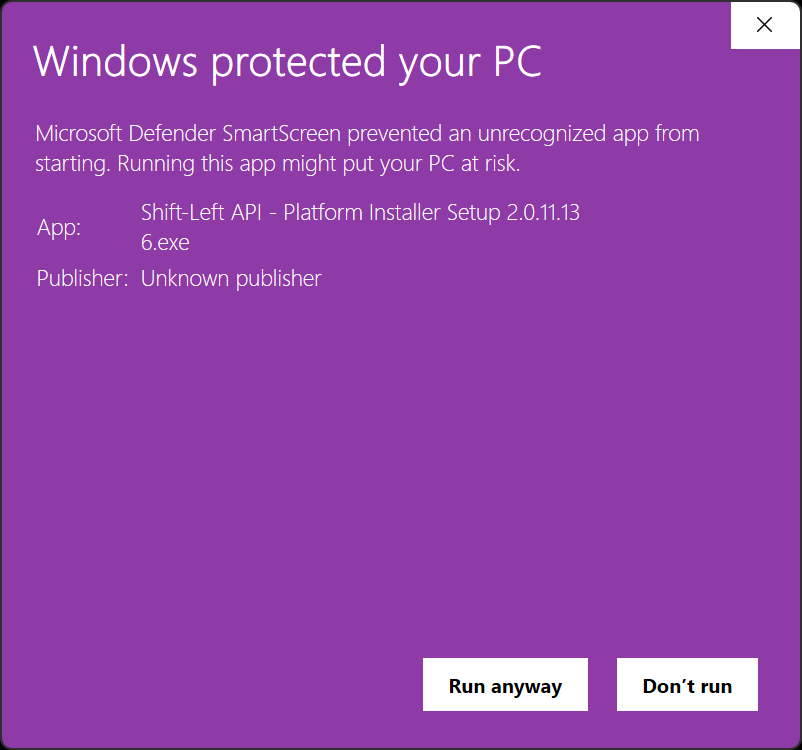
- Click Run anyway.
2.3 User Account Control (UAC)
When Windows asks for permission to allow the app to make changes to your device, click Yes.
2.4 Choose install location
The setup wizard will show the Choose Install Location screen.
- Default location:
C:\Program Files\Shift Left API Platform\Unified-Installer - You can click Browse... to choose a different folder, or leave the default and click Install.
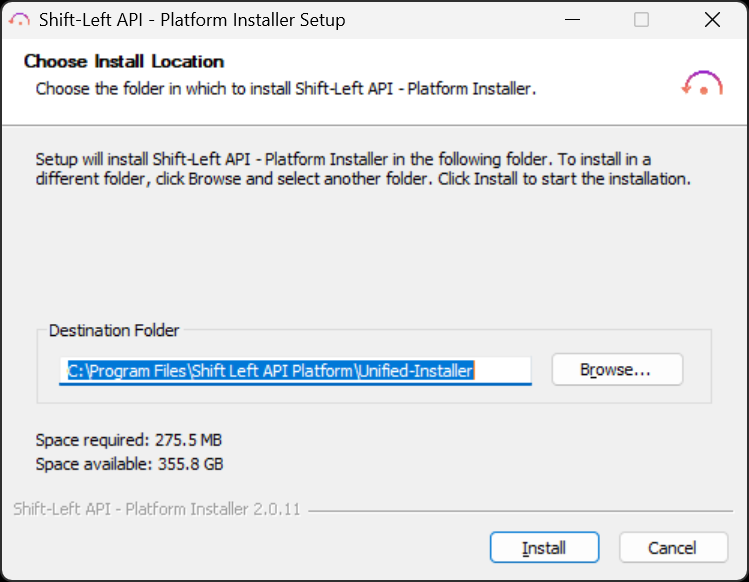
Click Install.
2.5 Installing
The installer will run and show a progress bar. Wait until it finishes.
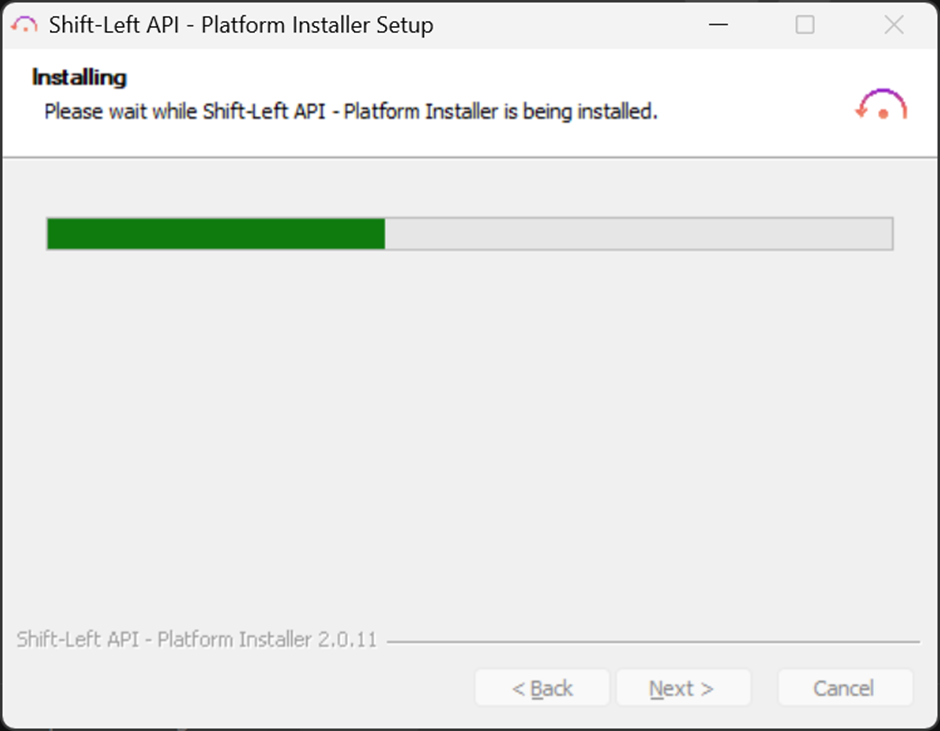
2.6 Completing the setup
When the wizard shows Completing Shift-Left API - Platform Installer Setup:
- You can leave Run Shift-Left API - Platform Installer checked so the Installer opens automatically after you click Finish.
- Click Finish.
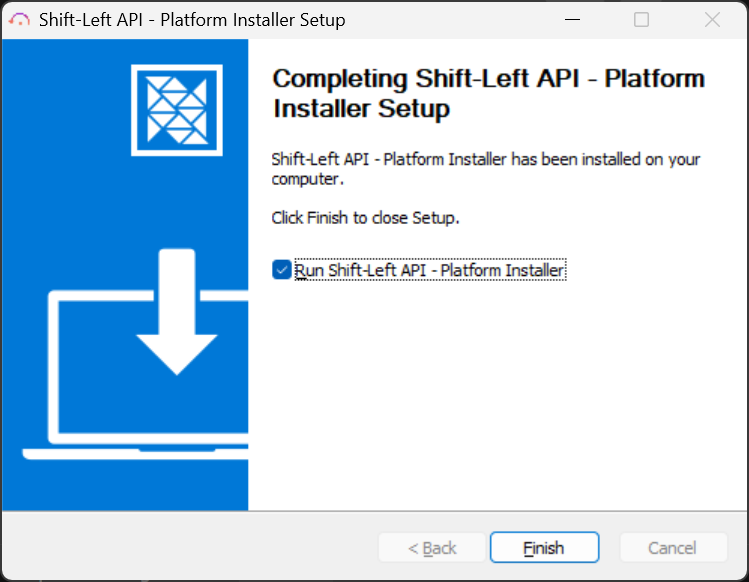
The Shift-Left API - Platform Installer application will launch (if you left the option checked). You will use this app to install the Engine and Studio. If Windows asks for permission to allow the app to make changes to your device, click Yes.
Step 3 — Select components and download
When the Shift-Left API - Platform Installer window opens, you’ll see the Select Components to Install or Update section.
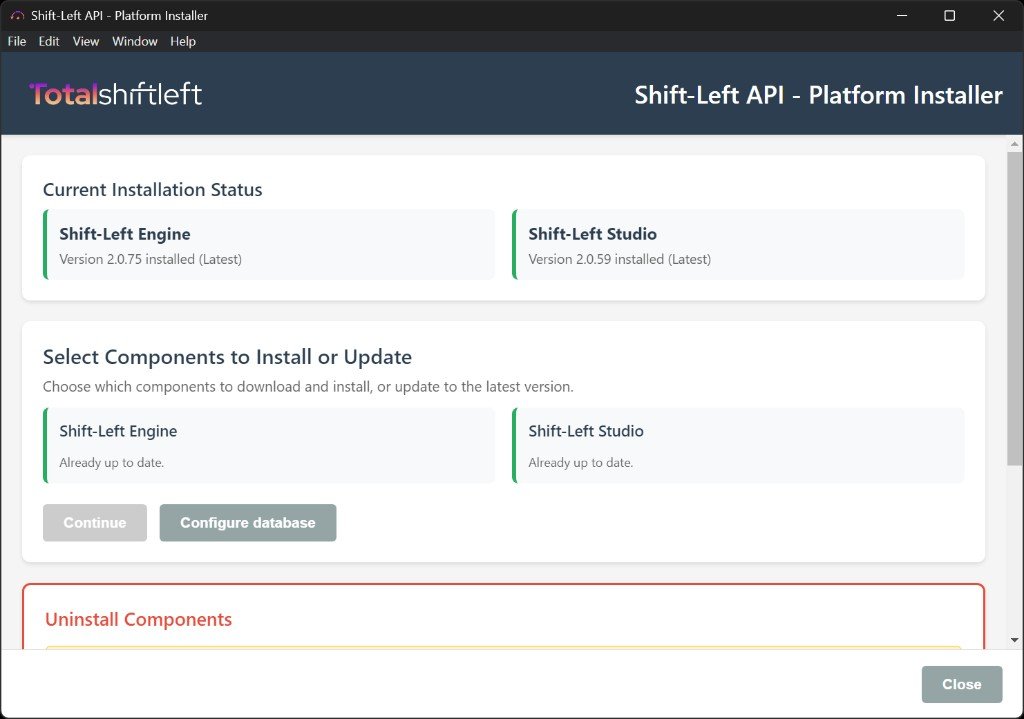
- Current installation status shows whether Engine and Studio are already installed and which versions are available (e.g. Engine 2.0.74, Studio 2.0.58). For a first install, both will show as Not installed.
- Shift-Left Engine – Install or update the API server and Windows service.
- Shift-Left Studio – Install or update the desktop application.
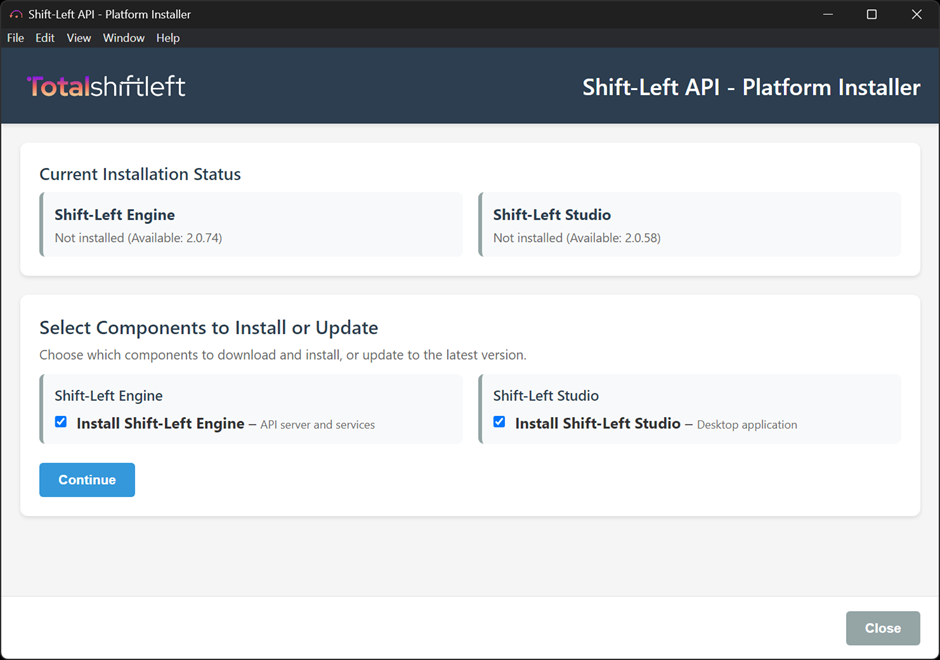
- Select the components you want on this machine:
- Install Shift-Left Engine – API server and services.
- Install Shift-Left Studio – Desktop application.
- For a single machine (e.g. your PC), select both.
- For a server that will only run the backend, select only Engine; install Studio on another machine and point it to this Engine.
- Click Continue.
The Installer will download the selected components. You’ll see progress for each (e.g. Engine and Studio). Wait until the download phase completes.
Step 4 — Configure database and service
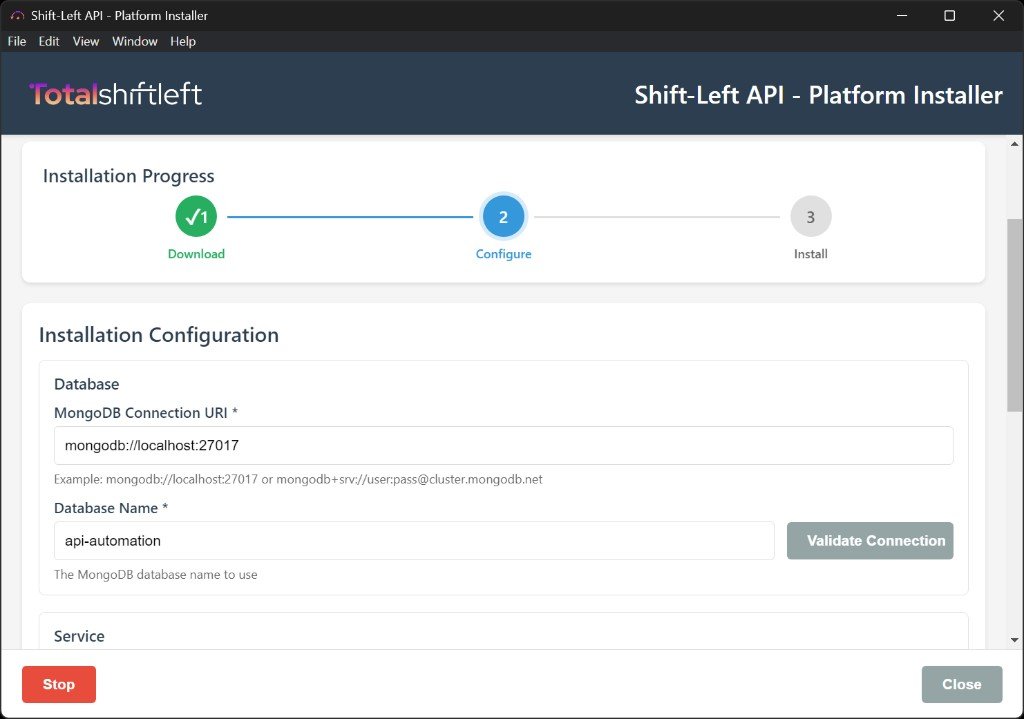
After the download finishes, the Installer moves to the Configure step (Installation Configuration).
4.1 Database settings
- MongoDB Connection URI*
Enter the connection string (e.g.mongodb://localhost:27017ormongodb+srv://user:pass@cluster.mongodb.net). - Database Name*
Enter the database name (default:api-automation).
Click Validate Connection to ensure MongoDB is reachable and the Engine can use it.
4.2 If MongoDB is not available
If MongoDB is not installed or not running, the Installer will show a MongoDB Unavailable message with a link to download and install MongoDB.
- Click the link to open the MongoDB installation documentation (or the MongoDB Enterprise Server download page).
- Install and start MongoDB on this machine (or configure the URI to point to an existing MongoDB server).
- Return to the Shift-Left API Installer, click OK to close the message, then click Validate Connection again.
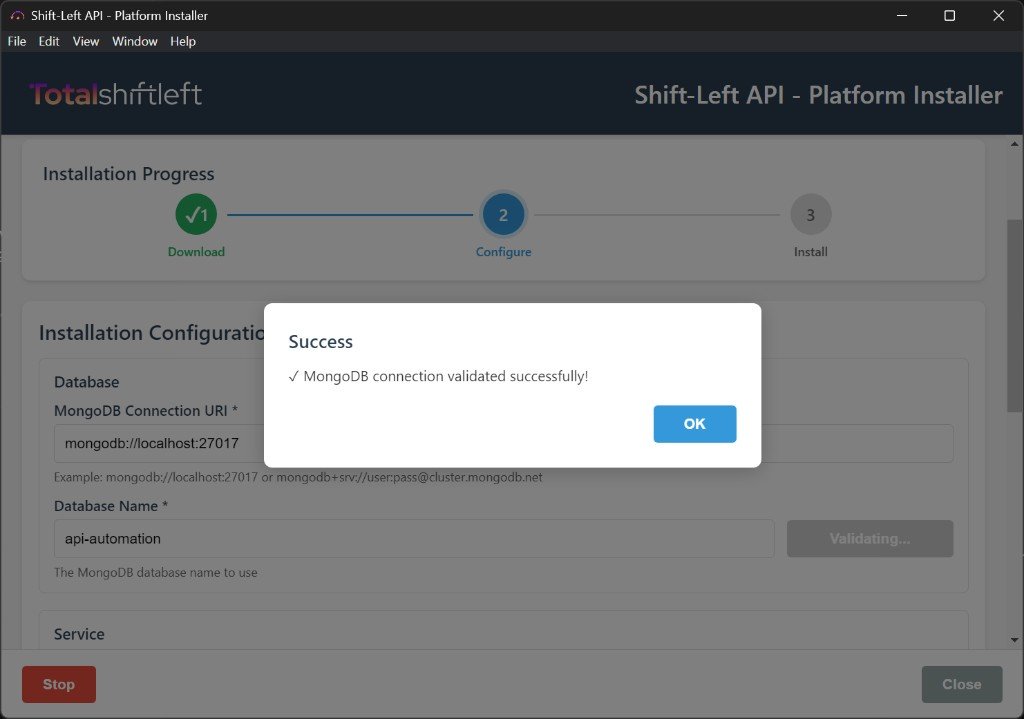
4.3 When validation succeeds
When MongoDB is running and reachable, you’ll see: MongoDB connection validated successfully!
Click OK.
4.4 Service settings (Engine port)
Scroll down to the Service section:
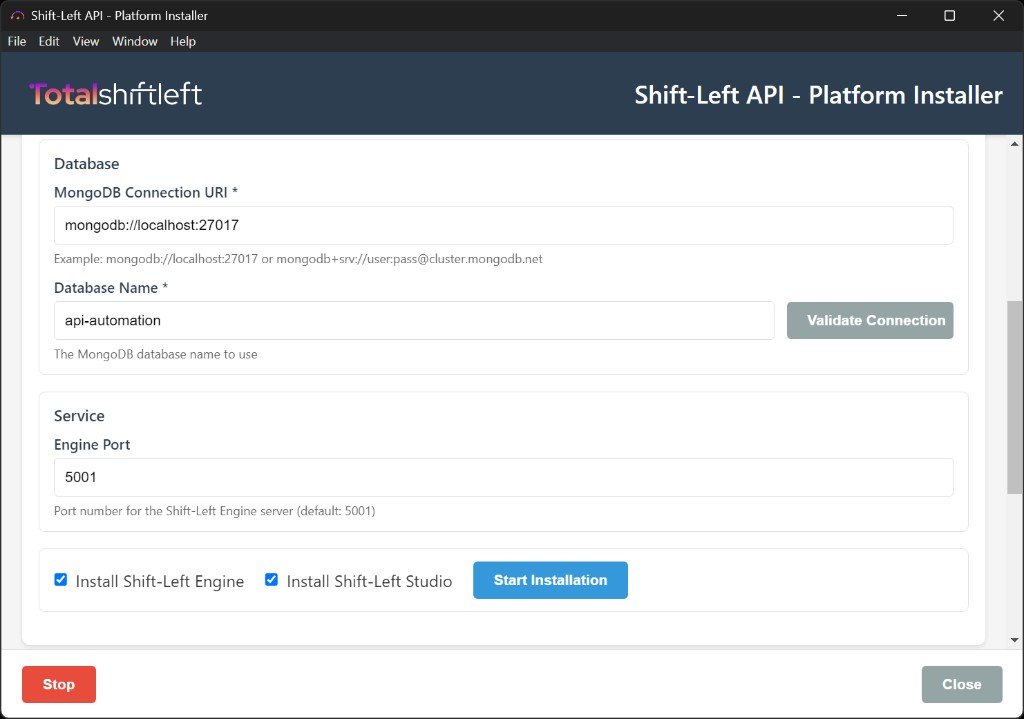
- Engine Port – Port for the Shift-Left Engine server (default: 5001). Change it if you need to avoid a conflict.
- Ensure the checkboxes for Install Shift-Left Engine and Install Shift-Left Studio are selected if you want both installed.
Click Start Installation.
Step 5 — Installation and completion
The Installer will install the selected components and show progress for each (e.g. Engine completed, then Studio).
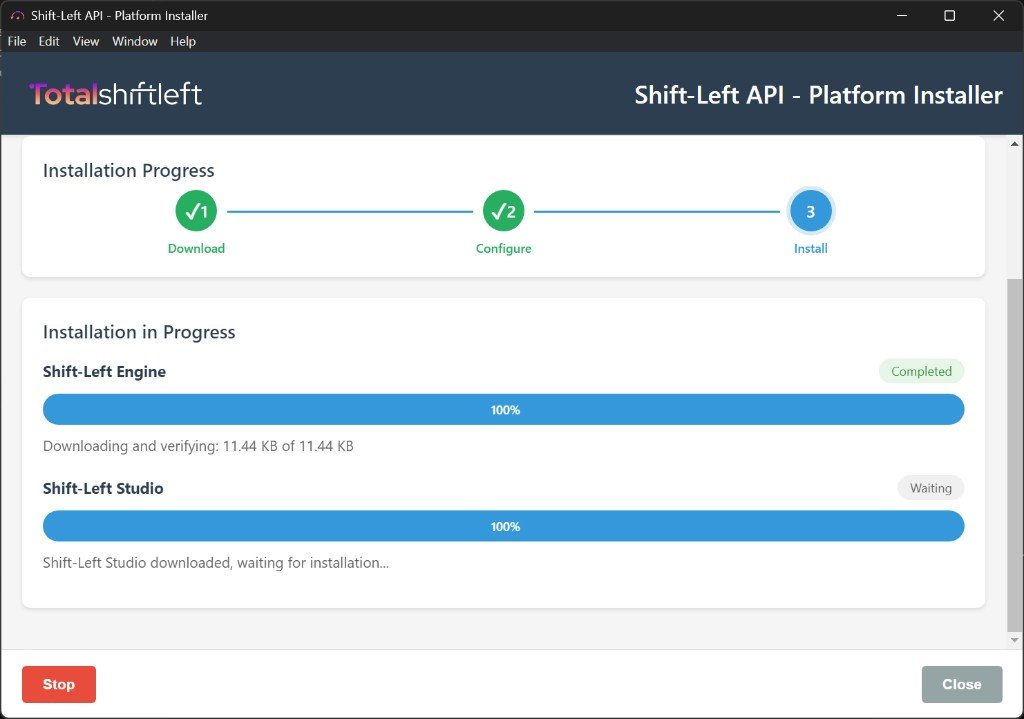
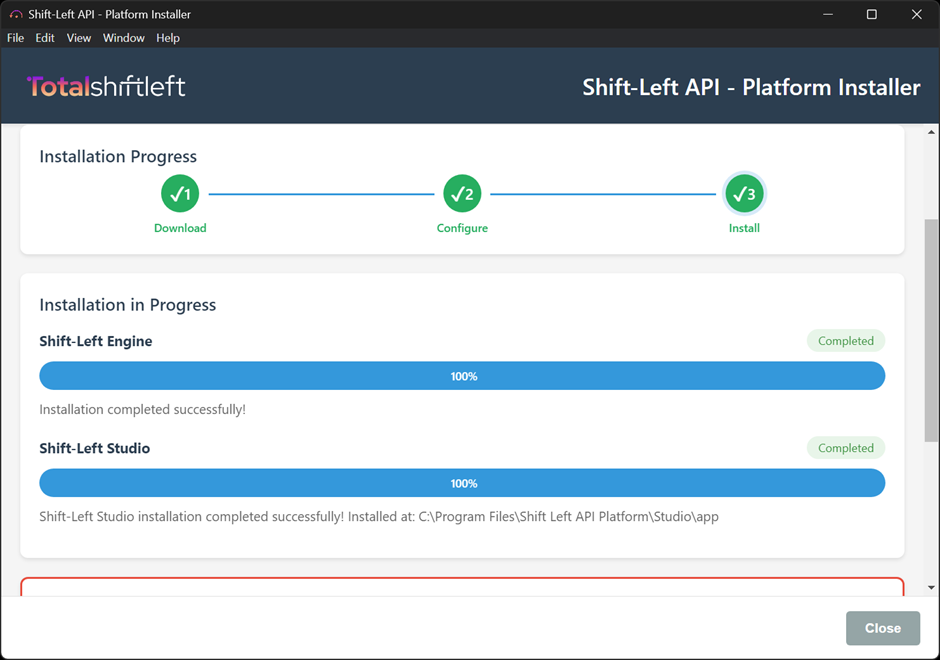
Wait until both show as completed. When done, you can Close the Installer.
Congratulations — you have successfully installed the Shift-Left API Automation Platform.
Launch Studio and next steps
- Close the Platform Installer using the Close button.
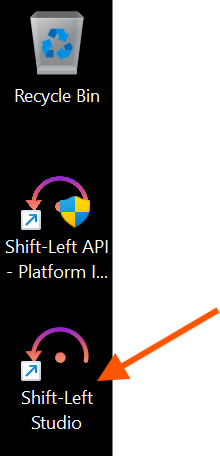
- On your desktop, use the Shift-Left Studio shortcut to launch the platform.
- Complete registration and initial configuration to start working with Shift-Left API.
For what to do next:
- Initial configuration (users, licensing, first project)
- Configuration fundamentals (base URL, auth, timeouts)
- Platform overview (how the pieces fit)
Verify installation
Check the Engine service
Open Services (Win + R → services.msc) and confirm:
- Shift-Left Engine is Running
Or in PowerShell:
sc.exe query "Shift-Left Engine"
Check install folders
- Engine:
C:\Program Files\Shift Left API Platform\Engine - Studio:
C:\Program Files\Shift Left API Platform\Studio
Update later
To update Engine or Studio:
- Open the Shift-Left API - Platform Installer.
- If you see Installer Update Available, choose Update Now or Later.
- In Select Components to Install or Update, choose Update Engine and/or Update Studio.
- Click Continue and follow the prompts (configure database if needed, then Start Installation).
Change MongoDB settings later
If the Engine is already installed:
- Open the Installer.
- Click Configure database.
- Update the MongoDB Connection URI and Database Name.
- Click Validate Connection, then Save configuration.
The Installer will attempt to restart the Shift-Left Engine service to apply the new settings.
Uninstall
In the Installer, scroll to Uninstall Components:
- Uninstall Shift-Left Engine – Removes the Engine service and Engine files.
- Uninstall Shift-Left Studio – Removes the Studio application and Studio files.
Select the components you want to remove and click Uninstall Selected.
Note: Some files may require a reboot to be fully removed if Windows has them locked.
Silent install (IT deployment)
For scripted or mass deployment, you can run the installer silently. NSIS-based installers typically support /S for silent install and /D=<path> for the install directory (must be the last argument).
Example (PowerShell):
Start-Process -FilePath "C:\Path\To\Shift-Left API - Platform Installer Setup X.X.X.X.exe" `
  -ArgumentList '/S', '/D=C:\Program Files\Shift Left API Platform' `
  -Wait
Replace the path and filename with your actual installer path. After the Installer app is installed, users or scripts still need to run the Platform Installer once to select components and configure MongoDB.
Logs and troubleshooting
Installer self-update logs
If the Installer updates but does not relaunch, check the newest log in %TEMP%:
Get-ChildItem $env:TEMP -Filter "installer-update-*.log" |
  Sort-Object LastWriteTime -Descending |
  Select-Object -First 1
Installer crash log
If the Installer fails to start, a crash log may be written to:
%TEMP%\installer-crash.log
Common fixes
- Admin errors: Run the installer as Administrator (right-click → Run as administrator).
- MongoDB validation fails: Check URI, credentials, firewall, and MongoDB version (4.4+). Ensure the MongoDB service is running.
- Port conflicts: Change the Engine port in the Service section or stop the application using the port.
- Service won’t start: Check Engine logs under
C:\Program Files\Shift Left API Platform\Engine\current\logs\.
Next steps after install
Once the Engine service is running and Studio is installed:
- Initial configuration – users, licensing, first project
- Configuration fundamentals – base URL, auth, timeouts
- Platform overview – how the pieces fit
- Debug Logging – if you need deeper troubleshooting
Related articles
- Getting started · Installation
Next steps
- Configuration fundamentals · Base URL, auth, timeouts
- Initial configuration · First-run checklist
- Platform overview · How the pieces fit
- Release notes · What changed recently
Still stuck?
Tell us what you’re trying to accomplish and we’ll point you to the right setup—installation, auth, or CI/CD wiring.