
Azure DevOps API Testing: Complete Pipeline Guide (2026)
Quick answer
Run API tests in Azure DevOps by adding a test-execution task to your YAML pipeline (a script task calling your test runner's CLI, or a dedicated task like Shift-Left API's), outputting JUnit XML, and publishing it with PublishTestResults@2. Set failTaskOnFailedTests: true and condition: always() on that task — the first makes a failing test fail the build, the second ensures you still see results when tests fail.
Reviewed by Rishi Gaurav

Azure DevOps pipelines provide a native way to embed API testing into every build, pull request, and release. When configured correctly, they catch broken endpoints before code reaches production, enforce coverage thresholds as deployment gates, and give teams a single dashboard for test analytics across runs.
Azure DevOps API testing means configuring your YAML pipeline to automatically execute API test suites, publish results to the Tests tab, and enforce quality gates that block deployments when tests fail or coverage drops.
Engineering teams using Azure DevOps already have the infrastructure for automated builds and deployments. The missing piece for many of them is automated API testing that runs as part of the pipeline rather than as a separate, disconnected activity. Without it, broken API contracts, schema drift, and performance regressions slip through the build and only surface in staging or production.
This guide walks through the complete setup: from creating a dedicated API test stage in your YAML pipeline to configuring quality gates that block releases when thresholds are not met. It covers the Shift-Left API Azure DevOps integration as the primary approach, with notes on alternative methods for teams using other tools.
The principles here build on the foundational patterns covered in our guide to automating API testing in CI/CD pipelines. If you are new to CI/CD API testing, start there for the conceptual framework, then return here for Azure DevOps-specific implementation.
In this guide
- Why Azure DevOps for API Testing?
- Pipeline Architecture Overview
- Prerequisites and Setup
- YAML Pipeline Configuration
- Configuring the API Test Stage
- Publishing Test Results with JUnit
- Quality Gates and Deployment Gates
- Parallel Test Execution
- Environment Management
- Test Analytics and Trend Tracking
- Real-World Pipeline Example
- Common Azure DevOps API testing mistakes to avoid
- Best Practices Checklist
- Azure DevOps building blocks for API testing
- Azure DevOps API testing FAQ
Why Azure DevOps for API Testing?
Azure DevOps Pipelines has several characteristics that make it well-suited for API testing at scale.
Native YAML Pipelines
YAML-based pipelines are version-controlled alongside your application code. Your API test configuration lives in the same repository as the code it tests, which means changes to the pipeline go through the same pull request review process as application changes.
Built-in Test Reporting
The PublishTestResults@2 task natively understands JUnit, NUnit, and xUnit result formats. When API tests produce JUnit XML, Azure DevOps renders results in the Tests tab with pass/fail counts, duration metrics, and failure stack traces. No additional tooling is needed to visualize results.
Deployment Gates
Release pipelines support pre-deployment and post-deployment gates that query external services. You can configure a gate that calls Shift-Left API's public REST API to verify that the latest test pack run meets a minimum pass rate before the release proceeds. This is a feature not available in all CI/CD platforms.
Multi-Environment Support
Azure DevOps environments let you define deployment targets with approval checks and resource locks. API tests can run against each environment independently, with environment-specific variables controlling the base URL, authentication tokens, and test data.
Picking the runner first? Our comparison of continuous integration testing tools covers the CI systems, languages and licence models side by side.
Pipeline Architecture Overview
A well-structured Azure DevOps pipeline for API testing has three stages: Build, Test, and Deploy. The API testing stage sits between build and deployment, acting as a gate.
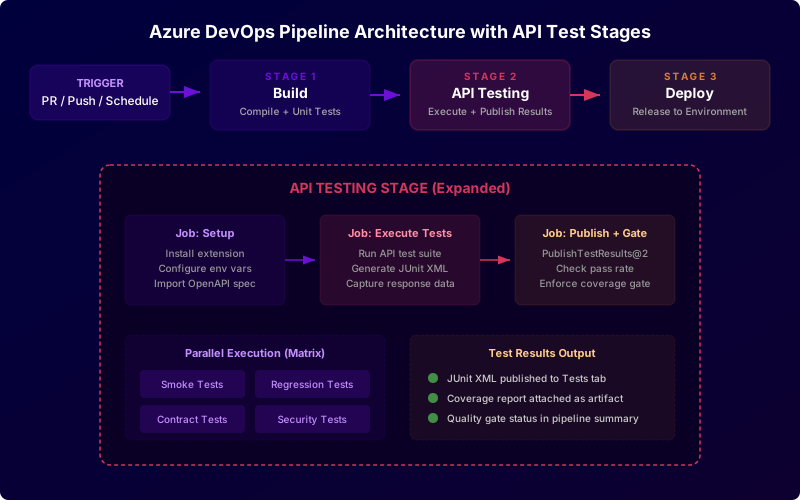
The Build stage compiles code and runs unit tests. The API Test stage executes API test suites against a deployed environment and publishes results. The Deploy stage only runs if the API test stage passes all quality gates.
Within the API test stage, three jobs run sequentially: setup (install the testing tool, configure environment variables, import the API spec), execute (run the test suite, generate JUnit results), and publish (upload results to Azure DevOps, evaluate quality gate thresholds). Shift-Left API ships first-party CI/CD integrations for Azure DevOps, GitHub Actions and Jenkins over one shared runner, so a test pack is graded identically on each; GitLab CI and other platforms call the same public REST API.
For teams with large test suites, the execution job can be split into parallel jobs using Azure DevOps matrix strategy. Each parallel job runs a subset of the suite and publishes its own results. This approach is essential for keeping pipeline duration under acceptable limits. See our guide on quality gates for details on choosing the right thresholds for each gate.
Prerequisites and Setup
Before configuring the pipeline, you need the following in place.
Azure DevOps Project
An Azure DevOps organization with at least one project. The project needs a repository (Azure Repos or a connected GitHub/Bitbucket repository) and a pipeline. If you do not yet have pipelines configured, create one from the Pipelines section using the YAML template.
API Specification
A machine-readable API specification in OpenAPI 3.x or Swagger 2.0 format. This spec is the source of truth for test generation. If you do not have a spec yet, learn how to generate API tests from OpenAPI as a starting point.
Test Execution Platform
A platform that can execute API tests and produce JUnit XML results. Shift-Left API provides a first-party Azure DevOps extension whose task runs a test pack, applies a pass-rate gate and writes JUnit XML in a single step; test generation from your spec happens in the platform beforehand. Alternatively, you can use script tasks to invoke any CLI tool or REST API.
Service Connection
If your API tests call the Shift-Left API REST API (or any external service), create a service connection in Azure DevOps under Project Settings > Service connections. Store API keys and tokens as secret variables in the pipeline or in a linked Azure Key Vault.
The pipeline only needs credentials for the test platform itself if the platform handles authentication to the APIs under test. In Shift-Left API that is an authentication profile per environment — OAuth 2.0 with a Fill in for a provider preset for Microsoft Entra ID, NTLM for Windows-integrated services, JWT Bearer signing and more, with tokens refreshed automatically. On Trial and Enterprise, administrators can configure Microsoft Entra ID SSO with group-to-role mapping, and test secrets can be referenced from HashiCorp Vault through the secret manager integration (Azure Key Vault is not supported yet).
YAML Pipeline Configuration
The foundation is the azure-pipelines.yml file in your repository root. Here is the stage structure:
trigger:
  branches:
    include:
      - main
      - feature/*

pool:
  vmImage: 'ubuntu-latest'

stages:
  - stage: Build
    displayName: 'Build and Unit Test'
    jobs:
      - job: BuildJob
        steps:
          - script: npm ci && npm run build
            displayName: 'Install and Build'
          - script: npm test
            displayName: 'Run Unit Tests'

  - stage: APITest
    displayName: 'API Testing'
    dependsOn: Build
    jobs:
      - job: RunAPITests
        steps:
          - task: totalshiftleft.shiftleft-api-integration-task@1
            displayName: 'Execute API Tests'
            inputs:
              serverUrl: $(SHIFTLEFT_URL)
              apiEmail: $(ShiftLeftEmail)
              apiPassword: $(ShiftLeftPassword)
              packId: $(SHIFTLEFT_TEST_PACK_ID)
              passThresholdPercent: '100'
              testResultsXmlPath: 'test-results/shiftleft-test-pack-results.xml'
          - task: PublishTestResults@2
            displayName: 'Publish API Test Results'
            condition: succeededOrFailed()
            inputs:
              testResultsFormat: 'JUnit'
              testResultsFiles: '**/test-results/*.xml'
              mergeTestResults: true
              testRunTitle: 'API Tests - $(Build.BuildNumber)'

  - stage: Deploy
    displayName: 'Deploy to Staging'
    dependsOn: APITest
    condition: succeeded()
    jobs:
      - deployment: DeployStaging
        environment: 'staging'
        strategy:
          runOnce:
            deploy:
              steps:
                - script: echo "Deploying to staging"
                  displayName: 'Deploy'
The dependsOn and condition: succeeded() directives ensure the Deploy stage only runs when API tests pass. This is the simplest form of a quality gate: the pipeline stops if any test fails.
Variable Groups
Store sensitive values in variable groups linked to Azure Key Vault:
variables:
  - group: api-testing-secrets      # ShiftLeftEmail, ShiftLeftPassword
  - name: SHIFTLEFT_URL
    value: 'https://shiftleft.yourcompany.com'
  - name: SHIFTLEFT_TEST_PACK_ID
    value: 'your_pack_id'
Ready to shift left with your API testing?
Try our no-code API test automation platform free. Generate tests from OpenAPI, run in CI/CD, and scale quality.
Configuring the API Test Stage
The API test stage can be configured in two ways: using the Shift-Left API extension or using script tasks.
Option A: Shift-Left API Extension
Install the Shift-Left API extension from the Visual Studio Marketplace (or as a VSIX for Azure DevOps Server). The extension adds a pipeline task that handles the run end to end:
- Signs in to your Shift-Left API deployment
- Triggers a test pack — the tests generated in the platform from your OpenAPI spec, against the environment the pack targets
- Waits for the run and applies the quality gate: a minimum pass rate, and optionally failing on any test that ends in error
- Writes JUnit XML and a JSON summary into the working directory
The task configuration is straightforward:
- task: totalshiftleft.shiftleft-api-integration-task@1
  displayName: 'Run API Tests'
  inputs:
    serverUrl: $(SHIFTLEFT_URL)
    apiEmail: $(ShiftLeftEmail)
    apiPassword: $(ShiftLeftPassword)
    packId: $(SHIFTLEFT_TEST_PACK_ID)
    passThresholdPercent: '100'
    failOnErrorTests: true
    gateFailureResult: 'failed'      # or 'succeeded-with-issues' to warn instead
    testResultsXmlPath: 'test-results/shiftleft-test-pack-results.xml'
Option B: Script-Based Approach
For teams that prefer a script step, call the public REST API directly. Save the script from Run a pack from any CI with the REST API as ci/run-shiftleft-pack.sh: it signs in, notes the pack's latest run, starts the pack, waits until a new run has finished, and exits non-zero when that run's pass rate is below the threshold. Polling the status endpoint straight after starting a run can read the previous run and pass the build, which is why the script waits for the run id to change.
- script: bash ci/run-shiftleft-pack.sh
  env:
    SHIFTLEFT_URL: $(SHIFTLEFT_URL)
    SHIFTLEFT_EMAIL: $(ShiftLeftEmail)
    SHIFTLEFT_PASSWORD: $(ShiftLeftPassword)
    SHIFTLEFT_PACK_ID: $(SHIFTLEFT_TEST_PACK_ID)
    SHIFTLEFT_PASS_THRESHOLD: '100'
  displayName: 'Execute API Tests via REST API'
The extension writes the JUnit XML that the PublishTestResults@2 task consumes; with the bare REST approach you get the execution's pass rate to gate on and assemble any reporting yourself. The extension approach is less code to maintain and includes built-in quality gate evaluation.
Publishing Test Results with JUnit
The PublishTestResults@2 task is the bridge between your test output and the Azure DevOps UI. It reads JUnit XML files and populates the Tests tab for each pipeline run.
Key Configuration Options
- task: PublishTestResults@2
  inputs:
    testResultsFormat: 'JUnit'
    testResultsFiles: '**/test-results/*.xml'
    mergeTestResults: true
    failTaskOnFailedTests: true
    testRunTitle: 'API Tests - $(Build.SourceBranchName) - $(Build.BuildNumber)'
  condition: always()
Setting condition: always() ensures results are published even when tests fail. Without this, a failing test step causes the publish step to be skipped, and you lose visibility into which tests failed.
Setting failTaskOnFailedTests: true makes the task itself fail when any test in the JUnit XML reports a failure. This provides an additional enforcement mechanism beyond the quality gate.
What Shows Up in the Tests Tab
After the task runs, the pipeline run's Tests tab displays:
- Total test count, pass count, fail count
- Individual test names with pass/fail status and duration
- Failure details including assertion messages and stack traces
- Test attachments (if included in the JUnit XML)
- Trend charts across multiple pipeline runs
Quality Gates and Deployment Gates
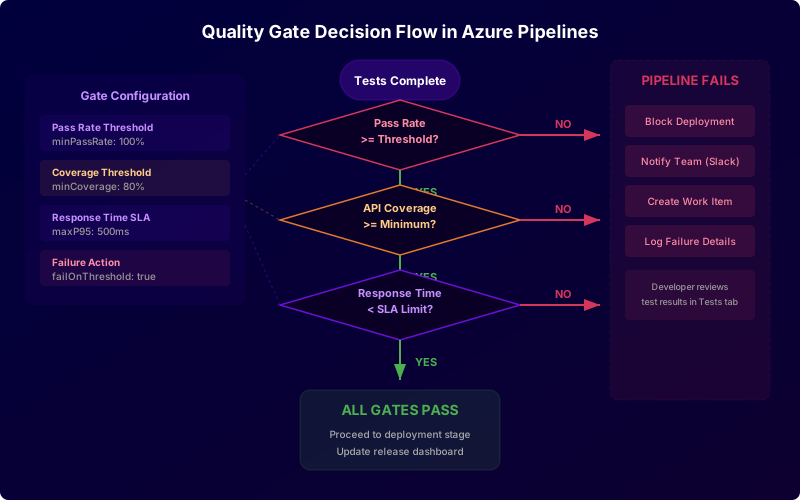
Quality gates go beyond simple pass/fail. They enforce measurable thresholds that prevent regressions in coverage, performance, and reliability. For a deep dive into what to measure, see our guide on API quality gates.
Pipeline-Level Quality Gates
In YAML pipelines, quality gates are implemented either inside the test task (the Shift-Left API task's passThresholdPercent and failOnErrorTests inputs) or as script tasks that evaluate thresholds and exit with a non-zero code when thresholds are not met. With the REST script from Option B, the gate is the script's own exit code, so the step only has to surface it. Do not read the status endpoint in a separate step: it reports the pack's most recent run, which is not necessarily the one this pipeline started.
- script: |
    bash ci/run-shiftleft-pack.sh || {
      echo "##vso[task.logissue type=error]Shift-Left API run is below the $SHIFTLEFT_PASS_THRESHOLD% pass-rate threshold or did not finish"
      exit 1
    }
  env:
    SHIFTLEFT_URL: $(SHIFTLEFT_URL)
    SHIFTLEFT_EMAIL: $(ShiftLeftEmail)
    SHIFTLEFT_PASSWORD: $(ShiftLeftPassword)
    SHIFTLEFT_PACK_ID: $(SHIFTLEFT_TEST_PACK_ID)
    SHIFTLEFT_PASS_THRESHOLD: '100'
  displayName: 'Evaluate Quality Gates'
Coverage is better judged where it is measured: Shift-Left API's coverage dashboard shows which endpoints and requirements are tested and where the gaps are, rather than reducing it to one number in the pipeline.
The ##vso[task.logissue] command surfaces the error message in the pipeline summary, making it easy for developers to understand why the build failed.
Security findings can gate the same pipeline. Shift-Left API's API security testing add-on (paid, on Professional, Custom or Enterprise licences; the Trial includes it) generates OWASP-mapped checks beside your functional tests, and its headless pack runner writes a SARIF file that Azure DevOps can display, fails the build with --fail-on-severity (critical, high, medium or low), and accepts --only-new so a team can turn the gate on before its existing findings are cleared.
Release Pipeline Deployment Gates
For classic release pipelines, Azure DevOps supports deployment gates that poll an external service at regular intervals. Configure a gate that calls Shift-Left API's public REST API and checks whether the latest test run for the target environment meets your thresholds. The gate re-evaluates every few minutes and only allows the deployment to proceed when the conditions are satisfied.
Parallel Test Execution
Large API test suites can take minutes to run sequentially. Azure DevOps matrix strategy lets you split the suite across parallel jobs.
- stage: APITest
  jobs:
    - job: RunAPITests
      strategy:
        matrix:
          smoke_tests:
            TEST_SUITE: 'smoke'
            PACK_ID: 'pack_smoke'
          regression_tests:
            TEST_SUITE: 'regression'
            PACK_ID: 'pack_regression'
          contract_tests:
            TEST_SUITE: 'contract'
            PACK_ID: 'pack_contract'
      steps:
        - task: totalshiftleft.shiftleft-api-integration-task@1
          inputs:
            serverUrl: $(SHIFTLEFT_URL)
            apiEmail: $(ShiftLeftEmail)
            apiPassword: $(ShiftLeftPassword)
            packId: $(PACK_ID)
            testResultsXmlPath: 'test-results/shiftleft-test-pack-results.xml'
        - task: PublishTestResults@2
          inputs:
            testResultsFormat: 'JUnit'
            testResultsFiles: '**/test-results/*.xml'
            testRunTitle: '$(TEST_SUITE) - $(Build.BuildNumber)'
          condition: always()
Each matrix entry runs as a separate agent job. Azure DevOps merges the test results in the Tests tab automatically when mergeTestResults is enabled. The stage fails if any matrix job fails, ensuring all suites must pass before deployment.
Choosing Parallel Agents
Each parallel job requires an agent. Azure DevOps hosted agents have a concurrency limit based on your subscription tier. For self-hosted agents, ensure your agent pool has enough capacity to run all matrix jobs simultaneously. If agents are not available, jobs queue and the total pipeline time may not improve.
Environment Management
API tests need a target environment to run against. Azure DevOps provides several patterns for managing this.
Pipeline Variables Per Environment
Use variable templates to switch the target URL based on the branch or stage:
variables:
  - ${{ if eq(variables['Build.SourceBranch'], 'refs/heads/main') }}:
    - name: TARGET_ENV
      value: 'https://api-staging.yourcompany.com'
  - ${{ if startsWith(variables['Build.SourceBranch'], 'refs/heads/feature/') }}:
    - name: TARGET_ENV
      value: 'https://api-dev.yourcompany.com'
Azure DevOps Environments
Define environments in the Environments section of Azure DevOps. Each environment can have approval checks, resource locks, and deployment history. When an API test stage targets an environment, it respects the environment's approval rules before running.
Dynamic Environments
For pull request branches, spin up ephemeral environments using container instances or Kubernetes namespaces. Pass the dynamic URL as a pipeline variable so API tests run against the PR-specific deployment. This is the highest-fidelity approach but requires infrastructure automation.
Test Analytics and Trend Tracking
Azure DevOps provides built-in test analytics that aggregate results across pipeline runs. Access it from the Analytics section under Test Plans.
What to Track
- Pass rate over time: Identify when regressions were introduced. A sudden drop correlates with a specific commit.
- Flaky test detection: Tests that alternate between pass and fail across runs without code changes. Azure DevOps flags these automatically.
- Test duration trends: Catch performance regressions early. If a test that ran in 200ms now takes 2 seconds, the API endpoint may have a performance issue.
- Coverage trends: Monitor whether API coverage is increasing as new endpoints are added. If coverage drops, new endpoints are being deployed without tests.
Free YAML templates + guide
CI/CD Testing Pipeline Templates
Production-ready CI/CD pipeline templates for GitHub Actions and GitLab CI. Includes API testing, contract testing, and performance testing stages.
Download FreeCustom Dashboards
Create Azure DevOps dashboard widgets that display API test metrics. Add the Test Results Trend widget and filter it to your API test pipeline. This gives stakeholders a quick view of API quality without digging into individual pipeline runs.
For teams that want deeper analytics, Shift-Left API provides dashboards that track coverage by endpoint and requirement, show where the gaps are, and highlight the API areas with the highest failure rates — with persona dashboards that can be embedded or sent as scheduled reports. When a run fails, its failed-run analysis groups the failures into causes with a verdict (test defect, data issue, environment problem or suspected product bug), which is what makes a red trend line actionable. See the platform overview for details.
Real-World Pipeline Example
Here is a complete pipeline for a team running a microservices API with separate smoke, regression, and security test suites. This example represents the patterns used by teams who have moved from manual testing to fully automated CI/CD API testing.
trigger:
  branches:
    include: [main, release/*]

pr:
  branches:
    include: [main]

variables:
  - group: shiftleft-secrets        # ShiftLeftEmail, ShiftLeftPassword
  - name: SHIFTLEFT_URL
    value: 'https://shiftleft.yourcompany.com'

stages:
  - stage: Build
    jobs:
      - job: BuildAndUnitTest
        pool: { vmImage: 'ubuntu-latest' }
        steps:
          - script: npm ci && npm run build && npm test
            displayName: 'Build + Unit Tests'
          - publish: $(System.DefaultWorkingDirectory)/dist
            artifact: app-dist

  - stage: DeployToTest
    dependsOn: Build
    jobs:
      - deployment: DeployTestEnv
        environment: 'test'
        strategy:
          runOnce:
            deploy:
              steps:
                - download: current
                  artifact: app-dist
                - script: ./deploy.sh test
                  displayName: 'Deploy to test environment'

  - stage: APITest
    dependsOn: DeployToTest
    jobs:
      - job: SmokeTests
        pool: { vmImage: 'ubuntu-latest' }
        steps:
          - task: totalshiftleft.shiftleft-api-integration-task@1
            inputs:
              serverUrl: $(SHIFTLEFT_URL)
              apiEmail: $(ShiftLeftEmail)
              apiPassword: $(ShiftLeftPassword)
              packId: 'pack_smoke'           # pack targets the test environment
              testResultsXmlPath: 'results/shiftleft-test-pack-results.xml'
          - task: PublishTestResults@2
            inputs:
              testResultsFormat: JUnit
              testResultsFiles: '**/results/*.xml'
              testRunTitle: 'Smoke Tests'
            condition: always()

      - job: RegressionTests
        pool: { vmImage: 'ubuntu-latest' }
        dependsOn: SmokeTests
        condition: succeeded()
        steps:
          - task: totalshiftleft.shiftleft-api-integration-task@1
            inputs:
              serverUrl: $(SHIFTLEFT_URL)
              apiEmail: $(ShiftLeftEmail)
              apiPassword: $(ShiftLeftPassword)
              packId: 'pack_regression'
              passThresholdPercent: '100'
              failOnErrorTests: true
              testResultsXmlPath: 'results/shiftleft-test-pack-results.xml'
          - task: PublishTestResults@2
            inputs:
              testResultsFormat: JUnit
              testResultsFiles: '**/results/*.xml'
              testRunTitle: 'Regression Tests'
            condition: always()

  - stage: DeployStaging
    dependsOn: APITest
    condition: succeeded()
    jobs:
      - deployment: DeployStagingEnv
        environment: 'staging'
        strategy:
          runOnce:
            deploy:
              steps:
                - script: ./deploy.sh staging
                  displayName: 'Deploy to staging'
This pipeline deploys to a test environment first, runs smoke tests to validate the deployment is healthy, then runs the full regression suite with quality gates. Only when all tests pass does the pipeline proceed to the staging deployment. Compare this with the Jenkins pipeline approach if your team is evaluating CI/CD platforms.
Common Azure DevOps API testing mistakes to avoid
Publishing Results Only on Success
If the PublishTestResults@2 task does not have condition: always(), it gets skipped when tests fail. You lose the failure details you need most. Always set the condition to always() on the publish step.
Hardcoding Environment URLs
Hardcoded URLs in the pipeline YAML break when environments change. Use variable groups or template parameters so the same pipeline works across dev, test, staging, and production.
Ignoring Flaky Tests
Flaky tests undermine confidence in the pipeline. If a test sometimes passes and sometimes fails without code changes, it needs to be fixed or quarantined. Azure DevOps test analytics flags flaky tests automatically. Address them before they erode team trust in the quality gate.
Running All Tests on Every PR
Not every pull request needs a full regression suite. Use test suite tagging to run smoke tests on PRs and full regression on main branch merges (in Shift-Left API, tag-based packs give you a smoke pack and a regression pack from the same tests). This keeps PR feedback loops fast while maintaining thorough validation before deployment.
Skipping API Tests for "Small Changes"
Schema-breaking changes are often small: a renamed field, a changed type, a removed endpoint. There is no reliable way to determine whether a change affects the API without running the tests. Run API tests on every change.
Not Storing Test Artifacts
JUnit XML files are ephemeral unless you publish them as pipeline artifacts. Store them alongside build artifacts for post-mortem analysis, compliance audits, and debugging intermittent failures.
Best Practices Checklist
Use this checklist when setting up or auditing your Azure DevOps API testing pipeline:
- API test stage defined in
azure-pipelines.ymlwithdependsOnon the build stage -
PublishTestResults@2task withcondition: always()andmergeTestResults: true - Quality gate thresholds configured (pass rate, coverage, response time)
- Sensitive values stored in variable groups linked to Azure Key Vault
- Parallel execution configured for large test suites using matrix strategy
- Smoke tests run on pull requests; full regression on main branch
- Test results published with descriptive
testRunTitlefor easy identification - Environment-specific variables managed through variable templates
- Deployment gates configured in release pipelines for production deployments
- Test analytics dashboard created for stakeholder visibility
- Flaky test monitoring enabled and addressed regularly
- Pipeline YAML reviewed in pull requests like application code
- JUnit XML artifacts stored for compliance and debugging
- Test execution notifications sent to team channel on failure
Ready to implement this pipeline? Start a free trial to try the Shift-Left API Azure DevOps extension, or compare pricing plans for your team size.
See also: contract testing in our learn hub for the underlying concept.
Azure DevOps building blocks for API testing
The pipeline is short once you know which task does what:
| Need | Azure DevOps mechanism | Note |
|---|---|---|
| Run the suite | A script or Bash@3 step | Anything that runs in a shell runs here |
| A database for integration tests | resources.containers plus service containers | The same model as GitHub Actions service containers |
| Publish results into the run summary | PublishTestResults@2 with the JUnit format | Makes failures reviewable without opening logs |
| Code coverage in the UI | PublishCodeCoverageResults@2 (Cobertura) | Also drives the build's coverage policy |
| Secrets | Variable groups linked to Azure Key Vault | Keeps secrets out of the pipeline definition |
| No long-lived credentials | Workload identity federation service connection | Replaces stored service-principal secrets |
| Block a pull request on failures | Branch policy: build validation | The gate is the policy, not the pipeline |
| Share one standard across repositories | Template extends from a central repository | The Azure equivalent of a reusable workflow |
The step teams most often miss is PublishTestResults@2 — without it a failing suite is a red build with no visible reason, and people stop reading it.
Azure DevOps API testing FAQ
How do I add API tests to an Azure DevOps pipeline?
Add a test execution task to your YAML pipeline that runs your API test suite. You can use a script task to call a REST API (like Shift-Left API's public REST API), use the Shift-Left API Azure DevOps task, or run a CLI tool. Configure the task to output JUnit XML results, then add a PublishTestResults task to display results in the pipeline.
What is the best Azure DevOps extension for API testing?
Shift-Left API offers a first-party Azure DevOps extension that adds a pipeline task. It runs a test pack (tests generated in the platform from your OpenAPI spec), gates the step on a pass-rate threshold, and writes JUnit XML and a JSON summary for PublishTestResults@2. For open-source alternatives, you can script REST Assured or Newman (Postman CLI) as pipeline tasks.
How do I set up quality gates for API tests in Azure Pipelines?
Use pipeline conditions and gates in release pipelines. After the test task publishes results, add a condition that checks test pass rate or coverage threshold. In YAML pipelines, use a script task that calls the test platform's API to check coverage and returns a non-zero exit code if thresholds are not met.
Can I run API tests in parallel in Azure DevOps?
Yes. Use Azure DevOps matrix strategy or multiple jobs to run test suites in parallel. Split tests by API service, endpoint group, or test type (smoke, regression, contract). Each parallel job runs independently and publishes its own test results.
How do I view API test results in Azure DevOps?
Use the PublishTestResults@2 task with JUnit or NUnit format. Test results appear in the Tests tab of each pipeline run, showing pass/fail counts, duration, and failure details. For trending, Azure DevOps provides built-in test analytics across pipeline runs.
Sources and further reading
- Azure Pipelines documentation — YAML pipelines and the publish-test-results task.
- Newman — the CLI runner that executes Postman collections in CI.
- OpenAPI Specification — the normative spec for describing HTTP APIs.
Key takeaways
- Azure DevOps gives teams everything they need to build a robust API testing pipeline: YAML-based configuration that lives alongside code, native test result reporting, deployment gates that enforce quality thresholds, and built-in analytics for tracking trends over time.
- The key is treating the API test stage as a first-class citizen in your pipeline, not an afterthought.
- It should have its own stage with clear dependencies, produce machine-readable results, enforce measurable quality gates, and provide visibility through dashboards and notifications.
- Start with a simple pipeline that runs smoke tests and publishes JUnit results.
- Once that is working reliably, add quality gates, parallel execution, and environment-specific configurations.
- The Shift-Left API Azure DevOps extension handles most of this configuration out of the box, letting you focus on defining the right thresholds rather than building the plumbing.
For teams evaluating their overall CI/CD API testing strategy, Azure DevOps is a strong choice when your organization is already invested in the Microsoft ecosystem. The native integration between pipelines, test plans, work items, and deployment environments creates a cohesive workflow that standalone tools cannot match.
Ready to shift left with your API testing?
Try our no-code API test automation platform free.