
Fill Existing Tests From a Data Set
Push a CSV, Excel, JSON, YAML or XML data set into every existing test of a project: preview first, undo afterwards.
What It Does
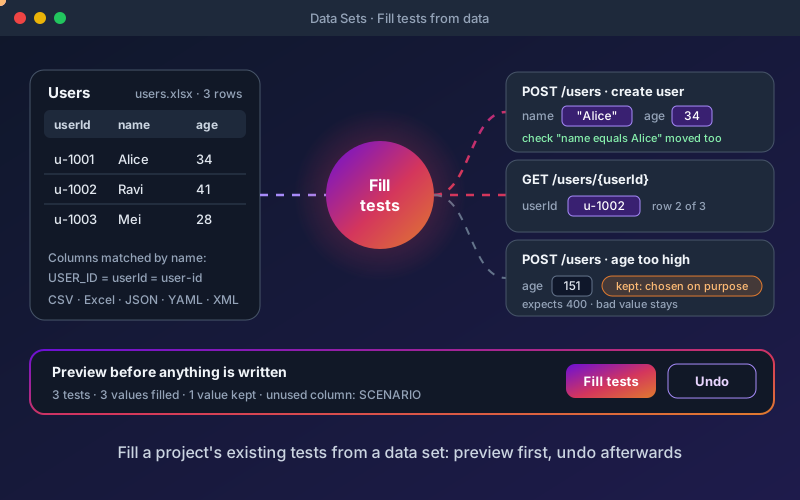
Generated tests often carry placeholder values, and the realistic data lives in a spreadsheet someone else owns. Filling tests by hand, endpoint by endpoint, is slow and easy to get wrong. This feature does it safely. Columns are matched to fields by name (USER_ID, userId and user-id are the same name), and a dotted column such as address.city fills a nested body field. A column never adds a field a request does not send; unused columns are listed. If the sheet names the endpoint or operation, each endpoint gets only its own rows, and an EXPECTED_STATUS column decides which rows a test that must pass may take. INVALID_ columns are never written into a test that must pass. A check that repeats a value the request sent moves with the new value, so "name equals John" becomes "name equals Alice". A filled value counts as your own edit, so regenerating tests keeps it, and Undo restores every test the fill changed except one someone edited afterwards, which it names.
Overview
A project already has tests, and a test-data specialist has a sheet of realistic values. Fill tests from data sends those values into the existing tests, one test at a time. Columns are matched to the fields each request already sends, values are converted to the field's type, and a value a test chose on purpose, such as a boundary or a wrong-type value, is left alone. You see a preview of every change before anything is written, and Undo restores the tests afterwards. Do it from the Data Sets screen, or ask the Project Assistant, which shows the same preview as an offer you accept.
Key Capabilities
How It Works
- 1
Import your file as a data set, or pick an existing one on the Data Sets screen
- 2
Choose Fill tests… and pick fill values or run each passing test once per row
- 3
Review the preview: which tests change, which values, and which columns went unused
- 4
Untick anything you want left alone, then fill; tests are written one at a time
- 5
Undo from Recent fills, or ask the assistant to undo the last fill
Available on
All Plans
Included in the free trial — no credit card required.
Documentation
Step-by-step guides for setting up and using Fill Tests From Data.
- Fill Tests From a Data SetSend the values in a CSV, Excel, JSON, YAML or XML data set into every existing test of a project, one test at a time. You see a preview first and can undo the change afterwards.
- Data-Driven TestingRun a test once per row of data—from an internal table, a saved dataset, a data source, or a generator—binding columns to request fields with {{row.COLUMN}} tokens.
Go deeper
Guides and playbooks that show this capability in practice.
Try Fill Tests From Data Today
Start your 15-day free trial — no credit card required.