
Related Data Across Sheets
What It Does
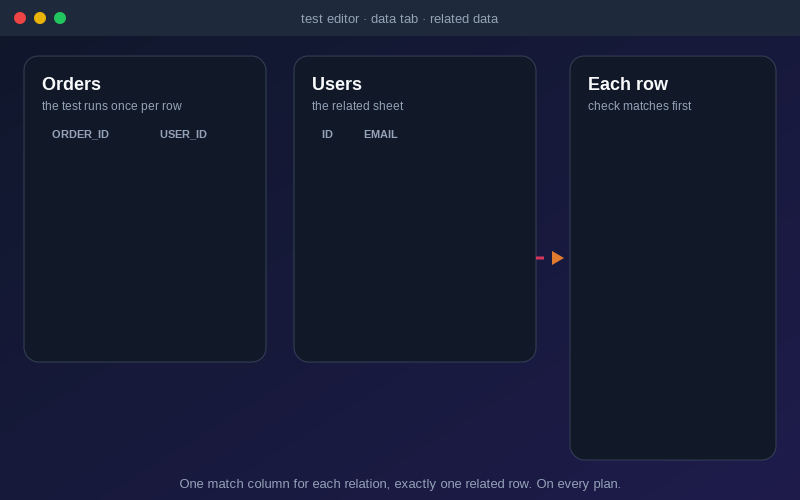
Without related data, you copy user details into every order row and keep the copies in step by hand. Instead, keep each sheet as it is and say how a row finds its partner: choose the related data, name the column in it, name the column in the current row that it must equal, and give the match a short name. For an Excel workbook, add each sheet you need as its own data source; sheets are not linked automatically. Check matches before running to find the rows that would be held back, with the reasons for the first five, such as an order whose USER_ID has no matching ID. Related data is read whole, once for each run, and a related dataset counts in that dataset's usage list. A workflow in which a row is held back reads as inconclusive, not passed. Each relation matches on one column and finds exactly one row: composite keys, one-to-many matches and relations that depend on other relations are not supported. The workflow editor has no Data section yet, so relations on a workflow are set through the API or the Project Assistant. On the desktop Agent, the runner reads JSON, CSV, XML and API data sets itself; otherwise the server reads both sets of data.
Overview
Real test data rarely fits in one sheet: orders live in one place and the users who placed them in another. With related data, a data-driven test that runs once for each row can also pick the one matching row of another data set. For example, each Orders row picks the Users row whose ID equals the order's USER_ID, and the test reads values such as {{related.user.EMAIL}}. A match is never guessed. A row with no match, or more than one, is not run, and you see why. It is part of data-driven testing, on every plan.
Key Capabilities
How It Works
- 1
Open a test, go to its Data tab and switch Data-driven testing on
- 2
Under Related data, choose "+ Add related data" and pick a saved dataset or data source
- 3
Set the match, for example where its column ID equals this row's USER_ID, and name it user
- 4
Select "Check matches" and fix any row that does not have exactly one match
- 5
Use {{related.user.EMAIL}} in the request or an expected value, then run the test
Available on
All Plans
Included in the free trial — no credit card required.
Documentation
Step-by-step guides for setting up and using Related Data.
- Related Data Across SheetsGive each row of a data-driven test the one matching row of another sheet or data set, for example each order's own user. A row without exactly one match is not run, and you see why.
- Data-Driven TestingRun a test once per row of data—from an internal table, a saved dataset, a data source, or a generator—binding columns to request fields with {{row.COLUMN}} tokens.
- Data SourcesCreate reusable connections to CSV, Excel, databases, JSON, or APIs, then bind their columns into tests with [[variable]] tokens for single-row or iterate-all execution.
Go deeper
Guides and playbooks that show this capability in practice.
Related Features
Data-Driven Testing
Run one test across many rows of data automatically.
Learn moreData Sources
Connect the data your tests need from the sources you already use.
Learn moreFill Tests From Data
Push a CSV, Excel, JSON, YAML or XML data set into every existing test of a project: preview first, undo afterwards.
Learn moreTry Related Data Today
Start your 15-day free trial — no credit card required.